
- Services
- Services
-
- Hire a Team
-
- Industry
- Company
- Company
-
- Case Study

Internal links are one of the most important yet often overlooked aspects of WordPress SEO. They help search engines understand your website structure while guiding visitors to relevant pages, improving navigation and engagement.
As your website grows, it’s common for internal links to become outdated, broken, or redirected. These issues can negatively impact user experience, reduce your SEO performance, and prevent search engines from efficiently crawling your website.
In this guide, you’ll learn how to check, verify, and fix internal links in WordPress using both free and premium tools. We’ll also share best practices to help you maintain a healthy internal linking strategy and improve your website’s overall SEO.
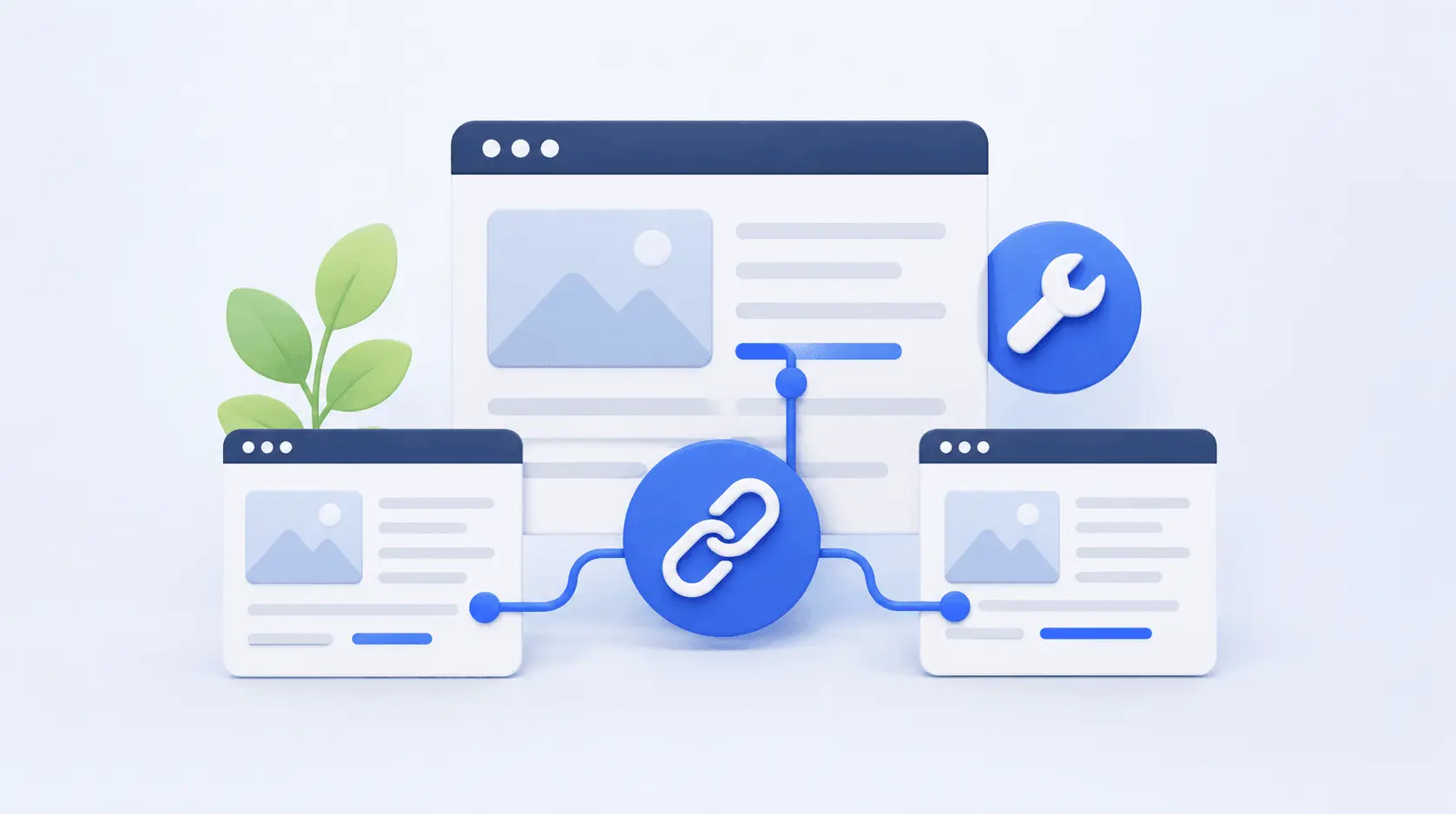
Internal links connect one page of your website to another, making it easier for both users and search engines to navigate your content. A strong internal linking strategy improves website usability while helping search engines discover and index important pages more effectively.
Regularly reviewing your internal links ensures visitors can easily access important content while maintaining a healthy website structure.
Internal link issues often go unnoticed until they start affecting your website’s performance. If you notice any of the following problems, it’s time to audit your internal links.
Identifying these issues early helps improve both your website’s SEO and overall user experience.

The simplest way to verify internal links in WordPress is by checking them manually. This method works well for small websites or when reviewing recently published posts. By opening your pages and clicking each internal link, you can quickly identify broken links, incorrect redirects, or outdated URLs.
How to Check Manually
Best For: Small websites and quick content reviews.
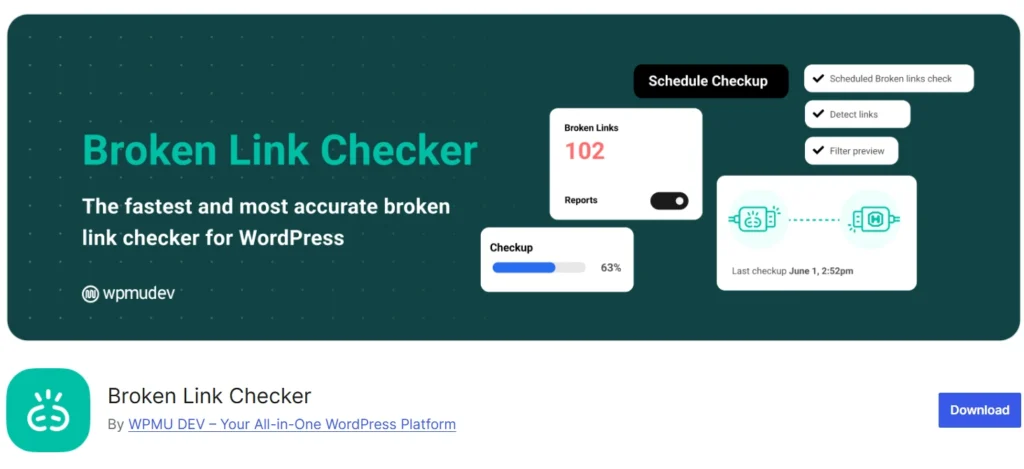
A Broken Link Checker plugin automatically scans your WordPress website and identifies broken internal and external links. It helps save time by providing a complete report of broken URLs, making it easy to fix them without manually reviewing every page.
Steps
Best For: Beginners and websites with a large number of pages.

Google Search Console is one of the best free tools for identifying crawl errors and indexing issues caused by broken internal links. While it doesn’t show every broken link, it highlights pages that Google couldn’t access properly.
How to Check
Best For: Monitoring website health and identifying crawl issues.

Screaming Frog SEO Spider is a powerful desktop application that crawls your website like a search engine. It identifies broken links, redirect chains, orphan pages, duplicate content, and many other technical SEO issues.
Steps
Best For: SEO professionals, agencies, and large websites.
Ahrefs and SEMrush provide advanced website audits that help identify internal linking issues along with other technical SEO problems. These tools also offer suggestions to improve your overall website structure.
What They Can Detect
These insights help improve both user experience and search engine visibility.
Best For: Businesses focused on long-term SEO growth.

Rank Math SEO includes built-in features that help improve your internal linking strategy. It provides content analysis, link suggestions, and SEO recommendations while you’re creating or editing content.
What You Can Do
Regularly updating internal links can improve crawlability and user engagement.
Best For: WordPress websites already using Rank Math SEO.

WP-CLI is a command-line tool that allows developers to manage WordPress websites efficiently. It can be used to audit content, identify outdated URLs, and perform bulk updates, making it a powerful option for large or complex websites.
Benefits
While WP-CLI requires technical knowledge, it can significantly speed up website maintenance and internal link management.
Best For: Developers and advanced WordPress users.
Maintaining a healthy internal linking structure is just one part of a successful SEO strategy. A complete WordPress SEO audit helps uncover technical issues, improve website performance, and identify opportunities to boost your search rankings.
At AssaptR, our WordPress SEO experts perform comprehensive website audits, including internal link analysis, broken link detection, crawl error checks, page speed optimization, on-page SEO improvements, and technical SEO recommendations. Whether you manage a business website, blog, or WooCommerce store, we’ll help ensure your website is optimized for both users and search engines.
Need expert assistance? Contact AssaptR today for a professional WordPress SEO audit and discover how your website can achieve better visibility, higher rankings, and improved performance.
A well-planned internal linking strategy is essential for improving your WordPress website’s SEO, navigation, and overall user experience. Regularly checking and fixing broken or outdated internal links helps search engines crawl your website more efficiently while guiding visitors to valuable content.
By using the methods covered in this guide—from manual checks to advanced SEO tools—you can keep your website healthy, improve crawlability, and strengthen your overall SEO performance.
If you’re looking for expert support with WordPress SEO, technical audits, or website optimization, AssaptR is here to help. Our experienced team can optimize your website’s internal linking structure and implement proven SEO strategies to help your business grow online.
Neha is a web technology enthusiast and content contributor at AssaptR, specializing in software development, custom web solutions, eCommerce, and digital marketing. Her articles focus on the latest industry trends, best practices, and actionable strategies that help businesses build secure, scalable, and high-performing digital products.
2.1. Benefits of Internal Links
3. Signs Your Website Has Internal Link Issues
4. Easy Methods to Check and Verify Internal Links in WordPress
4.1. Check Internal Links Manually
4.2. Use a Broken Link Checker Plugin
4.3. Use Google Search Console
4.4. Scan Your Website with Screaming Frog SEO Spider
4.5. Use Ahrefs or SEMrush Site Audit
4.6. Review Internal Links with Rank Math SEO
4.7. Audit Internal Links with WP-CLI (Advanced Users)

WhatsApp us